


VII) Results
Go to the Results screen (accessible by pressing the Results icon -the 5th, on the right-).
The list of the results for the selected car -the one displayed on the Perfs screen- is then displayed.
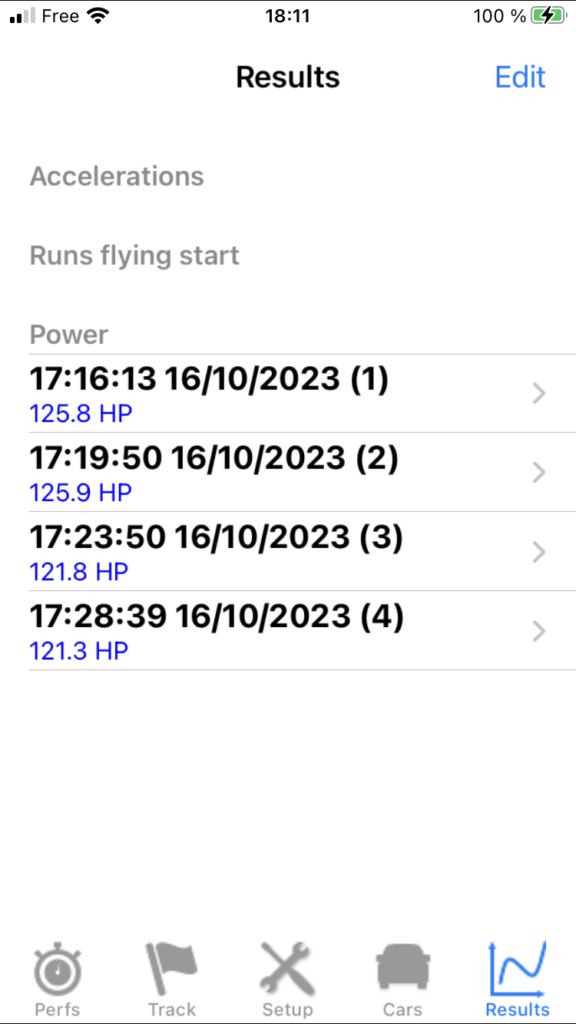
This list contains 3 parts, corresponding to the 3 types of measurement performed by PerfectPower: Power, Accelerations, and Runs flying start.
Each of the results in this list is identified by the date of the associated measurement, and several pieces of information (global or specific to the type of measurement) are also displayed:
Line 1 (global): Date of measurement, registration number (from 1 to 20, maximum number of results allowed)
Line 2 (specific to the type of measurement):
- Power: the max power
- Accelerations: the time at 400 m (1/4 mile) SS
- Runs flying start: the type of run (start speed, end speed, gear engaged) and the time achieved
Example (selected car Peugeot 307 1.6 16V)
1) Reading the results (sheet, graph)
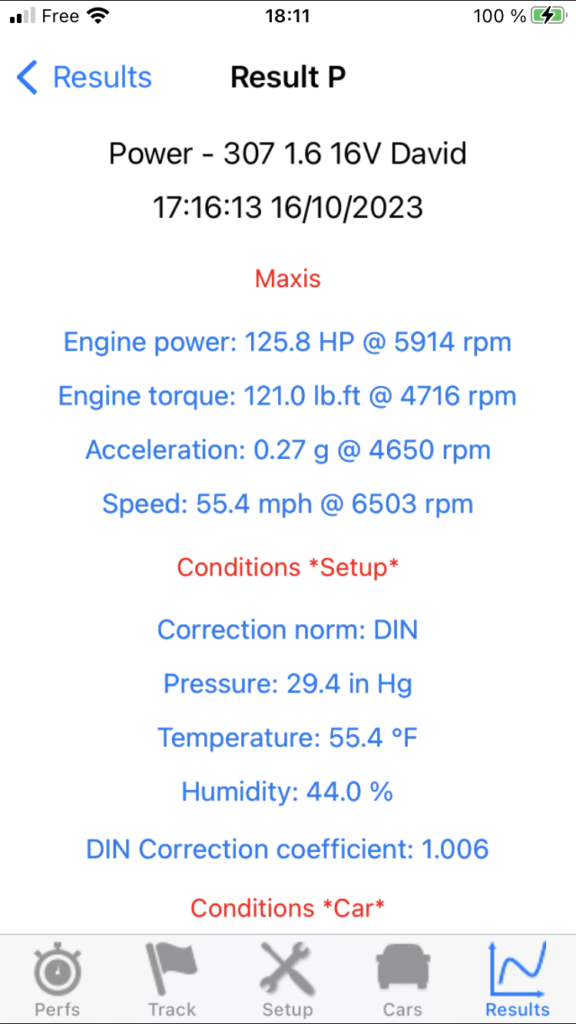
Click on the row corresponding to the desired result, and you will then access its sheet.
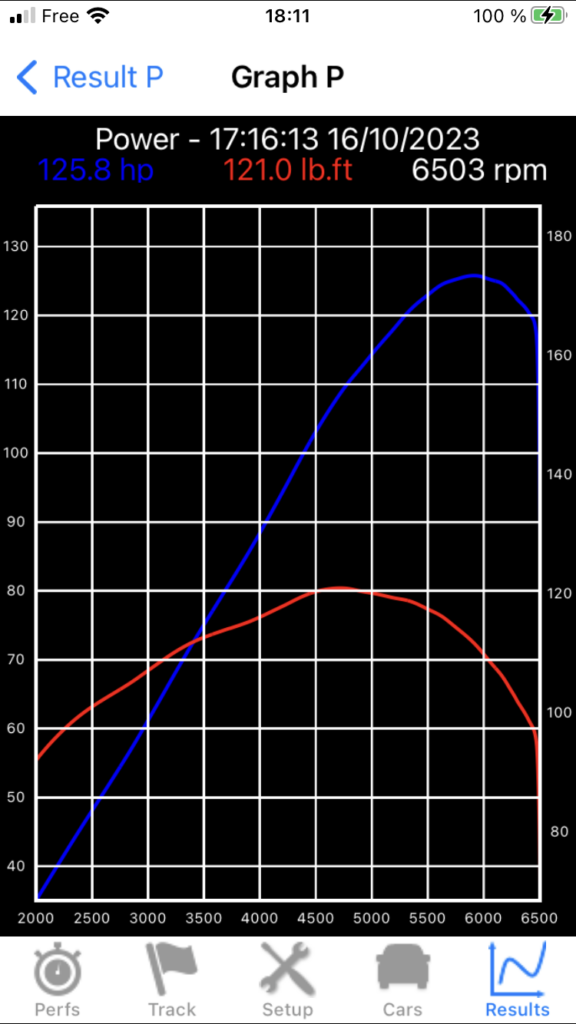
This sheet has a specific format for each type of measurement (power, accelerations, runs flying start). The power and acceleration results have a graph accessible by pressing the Graphic button located at the bottom of the sheet.
This graph includes two curves representing:
- Engine power and engine torque as a function of rev for power
- Acceleration and speed as a function of time for accelerations
The max values are summarized at the top of this graph.
This graph is also interactive: simply slide your finger over it to see a small green bar appear that moves with your finger, and the exact values of the selected measurement point are displayed in the reserved area at the top of the screen. To return to the results sheet, press the BACK button.
2) Recalculation of results on parameters (power) (soon available)
3) Correction of results on max speed (power) (mode 1)
PerfectPower offers an exceptionally effective function for correcting the results on max speed for power measurements carried out in mode 1 (Accelerometer + GPS), which allows these measurements to be corrected in the event of poor GPS reception (or even GPS failure!)!
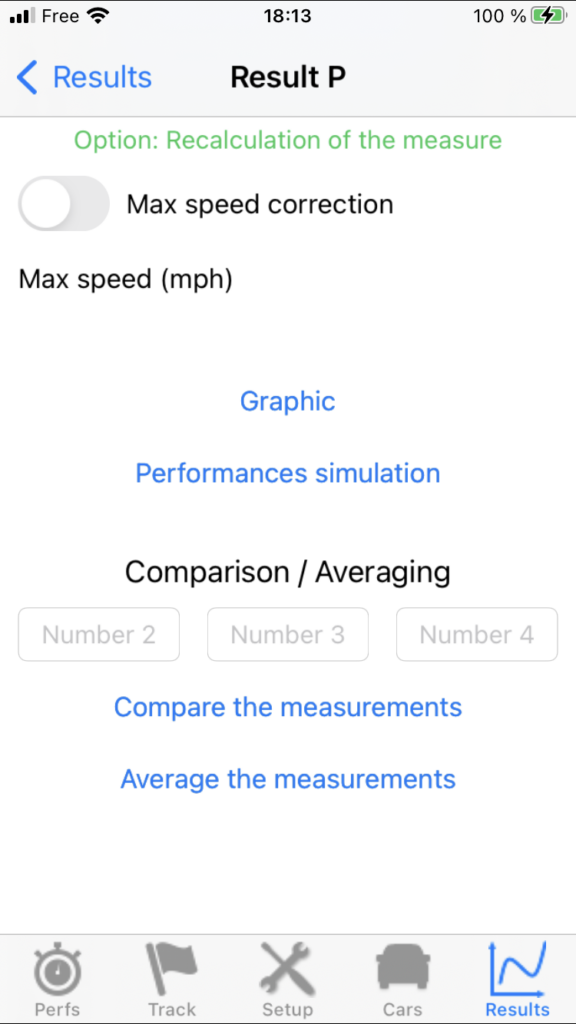
This function is located in any results sheet, at the bottom of the “Option: Recalculation of the measure” part, which is itself located below the results of the measure. To use it:
- Go to the results sheet of the measure to be corrected on max speed
- Check the “Max speed correction” box
- Enter in the “Max speed” field the actual max speed at the end of the measurement (you just need to determine it carefully: advice is given to you below on this subject in note 1)
- As soon as the keyboard is closed, PerfectPower instantly recalculates all your results (power, torque, rev, etc…) over the entire measurement, and this time they should be perfectly accurate!
You can of course repeat the operation for any other measure that would seem suspicious or erroneous to you!
Note 1: How to carefully determine the actual max speed at the end of the measurement in your power measurements with a given car ?
- You should first get into the habit of ALWAYS stopping your measurements at the SAME max rev (the one you selected in the Car sheet), as already recommended in the Tips & Tricks section of the power measurements (chapter IV-1).
- Then, there are several ways to do this, but we will limit ourselves to the two that have the best speed accuracy / ease of testing ratio!!
1) The first consists of experimentally determining this speed by using a technique that greatly limits the risks of GPS inaccuracy thanks to a measurement at stabilized speed over a sufficient period of time: put the car at a rev close to the selected max rev and on the selected gear, then accelerate gently until you reach this selected max rev, and once reached, try to stabilize there for 2 or 3 s and simply note the actual speed (GPS speed) read at the top of the PerfectPower Perfs screen (it should be stable): that’s it, you should have your actual max speed at the end of the measurement to the nearest km/h & mph!
2) The second consists of simply using the “Speed at max rev” calculated by PerfectPower and displayed just below the “Max Speed” field! However, it is important to know that this is a theoretical speed (even if already calculated realistically by taking into account the tire’s rolling radius different from both the theoretical radius -higher…- and the radius under load -lower…-) having a usual margin of error of +- 2% due to the trio of uncertainties “Actual tires dimension / Wear level / Pressure & Temperature”, and it is always better to determine this speed experimentally using the first technique detailed above, thank you for your attention.
Note 2: How can this function for correcting results based on max speed be so effective, to the point of even being able to do without GPS evidently? It’s because, to simplify, it gives full power back to the phone’s accelerometer (incomparably more accurate and faster than any GPS…) which provides 95% of the measurement accuracy in mode 1, but with the help of a fundamental information (actual max speed at the end of the measurement) that the operator (you!) must provide and which helps it to perfectly recalibrate the results curves!
Note 3: As for the configuration of the Car sheet, pressing the blue button Done on the keyboard generates a process of checking the validity of the data entered (actual max speed at the end of the measurement in the present case).
IMPORTANT: Be careful though not to “misuse” this extraordinarily effective function by entering a max speed that would not be exact! Indeed, this function was created ONLY to correct a possible weakness in GPS reception on certain measurements, and it should therefore ONLY be used in this case! If you use it when your GPS reception is good, you will only degrade and not improve the accuracy of your results! Refer to the Tips & Tricks section of the power measurements (chapter IV-1) to find out if you should use it, thank you.
Example: Correction on max speed not activated
4) Correction of results on road slope (power) (mode 2) (soon available)
5) Compare and/or average results from a same car
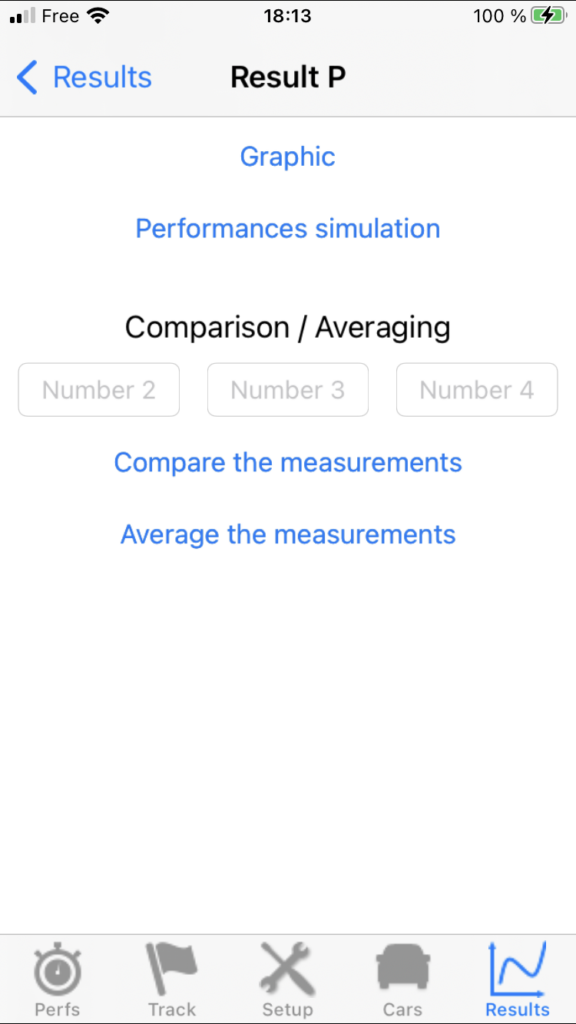
It is possible with PerfectPower to compare and/or average the results of two to four measurements of the same type for a same car. Simply access the results sheet for one of the measurements to be compared and/or averaged (this measurement will be the reference measurement), then select in the Comparison / Averaging part located at the bottom of the sheet the number of the other measurements to be compared and/or averaged, and finally press the appropriate Compare the measurements or Average the measurements button: you then access the comparison or averaging sheet of the chosen measurements. You then return to the results sheet of the reference measurement by pressing the BACK button.
Note 1: You must ensure the compatibility of the measurements to be compared and/or averaged:
Comparison
- 1) Power measurements: They must have been performed using the same correction norm
- 2) Acceleration measurements: No incompatibilities
- 3) Runs flying start measurements: They must be EXACTLY of the same type (same start speed, same end speed, same gear engaged)
Averaging
- 1) Power measurements: They must have EXACTLY the same SETUP parameters (correction norm, pressure, temperature, humidity) & CAR 1 (car weight, additional weight, engine displacement, number of cylinders, transmission type, tires dimension, gear ratio, final ratio, Cd.A) & CAR 2 (measurement gear, min rev, max rev)! However, they can have a different max speed correction status.
- 2) Acceleration measurements: No incompatibilities
- 3) Runs flying start measurements: These must be EXACTLY of the same type (same start speed, same end speed, same gear engaged)
However, you don’t really have to worry about this since if you select incompatible measurements, PerfectPower will detect this and won’t select them.
Note 2: As for the configuration of the Car sheet, pressing the blue button Done on the keyboard generates a process of checking the validity of the data entered (numbers of the measurements to be compared and/or averaged in the present case).
Example: Comparison of measurements 1, 2, 3, and 4 of the selected car
6) Compare results from different cars (soon available)
7) Export power results (sheet, graph) by email (soon available)
8) Delete a result
As for cars, you can also delete a result at any time: from the Results screen, press the Edit button located at the top right: you will then see a red button appear to the left of each result. Press the one corresponding to the result to be deleted, a red button Delete then appears to the right of the result, and you must press it to permanently delete the result. You can then delete other results by repeating the same operation. Do not forget at the end to press the Done button located at the top right to tell the application that you have finished your deletions.
Warning: This deletion operation is irreversible!