


VI) Lap Timer
Go to the Track screen (accessible by pressing the Track icon -the 2nd, in the middle-left-).
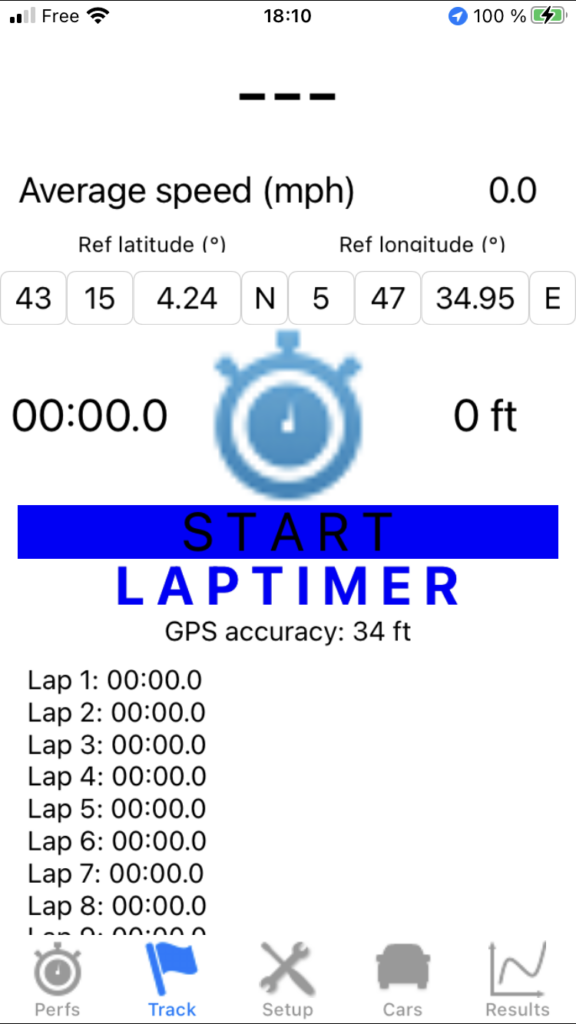
Prior definition: A Lap Timer is an automatic timing system for laps on track. This function allows all those who run on track to:
- Know the performance of their car on track during a session
- Check their regularity (driver AND car) during these sessions
- Quantify the progression of these performances over time
It is of course the GPS receiver which is used in base to perform this function.
To properly use the Lap Timer, you must perform the following 5 operations, and always in this order:
1) Set your phone to prevent it from switching to automatic standby
This is essential, because when the phone goes to sleep, certain functions such as GPS data recovery are put to sleep, which by definition prevents the Lap Timer from working… To make this setting, go to the “Settings / Display and Brightness / Auto-Lock” menu, then select “Never”.
2) Track selection (free choice of GPS coordinates)
You can freely choose the GPS coordinates of a reference point of the track on which you are going (ideally the middle of the finish line). You will have to search these GPS coordinates on Google Earth or in a “Lap Timer” specialized application (Harry’s Lap Timer, RaceChrono), then enter them in the application in the fields “Ref latitude (°)” and “Ref longitude (°)” in the DMS system (degrees, minutes, seconds). In this system, enter for the latitude and the longitude and from left to right the degrees (integer number), the minutes (integer number), the seconds (decimal number with a precision of 2 digits after the decimal point), and finally the quarter globe (latitude: N for North / S for South, longitude: E for East / W for West).
At this point, the Lap Timer is already ready to work!
3) Mount the phone ONLY on a good windshield mount for optimal GPS reception
Indeed, for an optimal GPS reception and therefore an optimal timing accuracy, it is essential that the phone is positioned under the windshield, and therefore on a good windshield mount. Since this is already the mounting to use for the PerfectPower basic measurements, use of course the same mount for all your measurements with PerfectPower.
4) Know that the Lap Timer only works if the speed at the reference point entered in the application is greater than or equal to 50 km/h (31 mph)
There are two reasons for this:
- The Lap Timer being used for track times, crossing the reference point at less than 50 km/h (31 mph) means that we have stopped the timed laps and there is no point in continuing to time
- The accuracy of the Lap Timer is PROPORTIONAL to the speed for a very simple physical reason: the time being equal to the quotient of the distance by the speed, the higher this one is, the lower the time lag due to the not perfect accuracy of the GPS receiver, and therefore the better the accuracy of the Lap Timer!
5) Get to the track, and run the Lap Timer!
When you leave to do your session, go to the Track screen, then do the following operations:
Press the chrono located in the middle of the screen. The bar below the chrono initially blue (“Start”) then turns white (“Running…”): the chrono then starts immediately, and you can start whenever you want to perform your timed session! Take care of absolutely nothing, PerfectPower manages everything! A few clarifications though:
- The Lap Timer obviously only begins to time the track laps from the first crossing of the track reference point! Which obviously doesn’t pose any problem, quite the contrary, since the initial phase from the start from the track parking is only a phase intended to launch, and the real timing MUST only begin once perfectly launched!
- All timed laps are memorized by PerfectPower and displayed in the lower part of the screen. Thus, once your session is over, you can analyze them quietly.
- The maximum number of recorded laps is 30, and the maximum timing duration is 1 h.
- In all cases, the timer will stop either manually by pressing the chrono on the screen, or automatically after the first of the following two conditions is met: 30 laps completed, or 1 h of session. The bar below the chrono then becomes blue again (“Ended”), and you can quietly analyze all your timed laps displayed in the lower part of the screen.
- Once the session has been analyzed, pressing again the chrono on the screen allows you to return to the “Start” state (bar below the chrono still blue) which will reset all the data, and you can start again whenever you want to perform a new timed session.