Annex 2 – Using an external GPS
Although this is not essential to obtain exceptional accuracy of results, PerfectPower offers you the possibility of using an external GPS communicating via Bluetooth with it to further optimize its accuracy of results (from 1% to 0.5% for power measurements) in mode 1 (Accelerometer + GPS) and simplify the measurement procedure (performing power measurements on a rolling start, eliminating the accelerometer calibration phase while driving for braking measurements, and completely freeing the phone from any mounting requirement) by using mode 2 (GPS only) (soon available). PerfectPower recommends two:
- A RaceBox Mini or Micro (25 Hz), driven by PerfectPower and allowing the use of mode 2 (soon available) (chapter 1)
- The SkyPro XGPS 160 (10 Hz alas limited to 1 Hz by Apple), authorized by Apple to communicate via Bluetooth with iOS (chapter 2)
Note 1: All info on the measurement mode in chapter I-0-B.
Note 2: PerfectPower also drives the RaceBox Mini S, but does not specifically recommend it since technically it is identical to the RaceBox Mini, the only difference is that it can record measurements that can then be used but PerfectPower does not use this function and always processes “live” the information received from the RaceBox.
1) Using a RaceBox Mini or Micro (soon available)
2) Using an external GPS via Bluetooth
To enable PerfectPower to communicate via Bluetooth with your external GPS, follow the 2-step process below:
- 1) Turn on your external GPS
- 2) Pair your external GPS with your phone (to do only one time)
Note 1: Not all external GPS devices are authorized by their manufacturer to communicate freely via Bluetooth with all applications on a phone! For example, the Dragy Box (an external GPS that is a direct competitor to the RaceBox Mini) can ONLY communicate with their Dragy proprietary software! The SkyPro XGPS 160 recommended by PerfectPower is obviously authorized, but it is not the only one, there are others.
Note 2: BUT conversely, Apple does not allow all external GPS devices to communicate via Bluetooth with its products (iPhone, iPod / iPad, etc…), or more precisely to substitute their GPS data to those of the internal GPS of its products, and there is an Apple official list of authorized external GPS devices. Of course, the SkyPro XGPS 160 recommended by PerfectPower is one of the lucky ones, with however alas one limitation: the frequency of GPS data is limited to 1 Hz, as on any “simple” smartphone (most certainly to limit energy consumption)…
1) Turn on your external GPS
Press the power button on your external GPS.
Note: This often requires a long press of 1 to 3 seconds, in order to prevent unwanted power-ups (and therefore battery drains).
2) Pair your external GPS with your phone (to do only one time)
The pairing process is the process that allows two devices to communicate via Bluetooth (in the present case, your external GPS and your iOS phone). It only needs to be done once: once paired, the two devices are respectively “registered” for each other.
Note 1: Depending on your iOS version, you may notice slight differences in menu names or locations.
Note 2: If your phone asks for a code during the pairing process, use “0000” or “1234”.
On your phone:
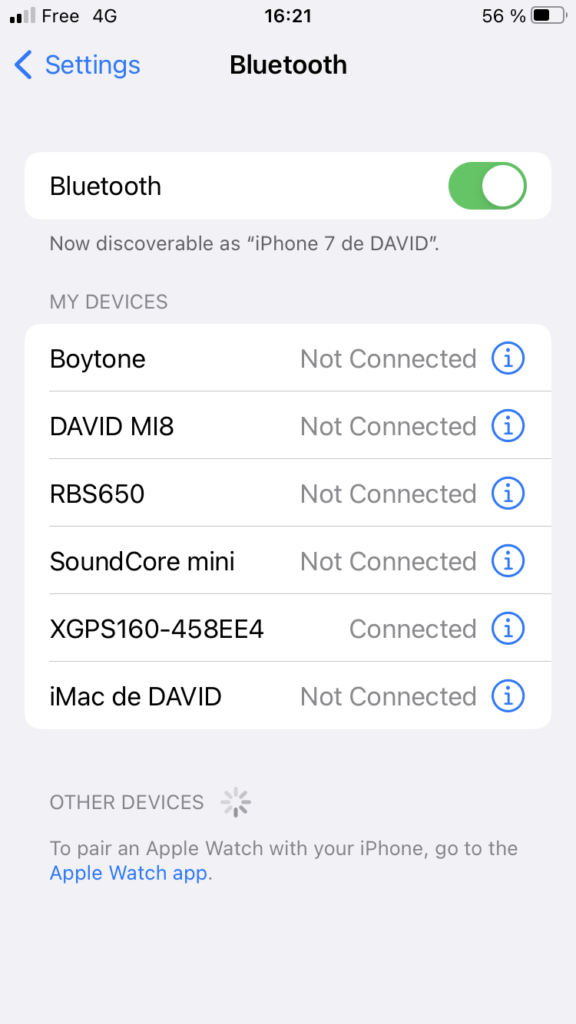
- Go to “Settings / Bluetooth”, and enable Bluetooth
After a few seconds, the name (or identifier) of your external GPS will appear in the “Other devices” list (= “Not paired devices” list): click on it, and in a few seconds your external GPS will appear in the “My devices” list (= “Paired devices” list), with the word “Connected” displayed to the right of the name of your external GPS: it’s done, not only your external GPS is now paired with your phone (ie it is recognized by your phone as a device with which it can communicate via Bluetooth), but it is also connected to it!
So, PerfectPower, like all other applications on your smartphone that use GPS and that retrieve GPS information from your smartphone’s OS, will receive information from your external GPS!